![Eaw logo-1.jpg]](https://design.eaw.com/hs-fs/hubfs/Eaw%20logo-1.jpg?height=40&name=Eaw%20logo-1.jpg)
|
Who can perform |
Customer / end user — no tools or disassembly required |
|
Symptom |
The AC6 does not appear in Resolution or Dante Controller, or appears in red text in Dante Controller. |
|
Cause |
A failed firmware update — typically during a Dante firmware update — has corrupted the firmware image and the unit has entered fail-safe mode. |
|
Requires |
A computer with Dante Controller and Dante Updater installed, and an Ethernet cable. |
- Connect your computer directly to the TOP SECONDARY network port on the AC6 output assembly. This is the port that is still communicating.
- Open Dante Controller. If the AC6 is shown in red text, it is in an error state such as fail-safe mode.
- Open the Dante Updater.
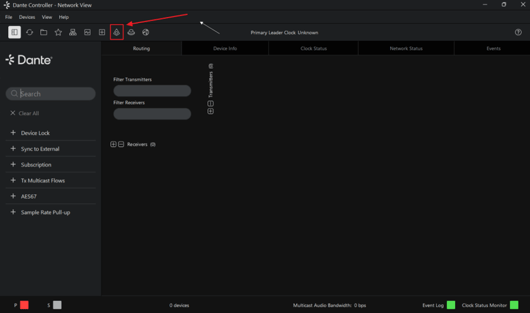
Figure 1. Dante Controller — opening the Dante Updater.
- Select Fail-safe.
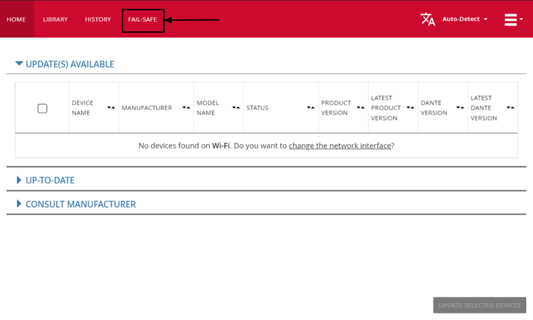
Figure 2. Dante Updater — selecting Fail-safe.
- Click Download Fail-safe Images.
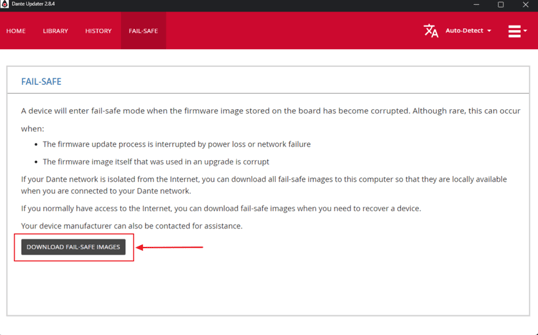
Figure 3. Downloading the fail-safe recovery image
When the download is complete, reconnect to the PRIMARY port and re-run the firmware update. The AC6 will return to its original operating state.|
NOTE: If the AC6 still does not appear after recovery, contact your authorized EAW service partner. |