---
title: Configuring a Greybox in EAWPilot
description: Pilot
---
[Skip to content](https://design.eaw.com/en/knowledge/configuring-a-greybox-in-eawpilot#main-content)
English
Show submenu for translations
![Eaw logo-1.jpg\]](https://design.eaw.com/hs-fs/hubfs/Eaw%20logo-1.jpg?height=40&name=Eaw%20logo-1.jpg)
- [Default HubSpot Blog](https://blog.eaw.com/)
Open main navigation
Close main navigation
- [Default HubSpot Blog](https://blog.eaw.com/)
- English
Show submenu for translations
- Contact us
Contact us
Hello. How can we help you?
- There are no suggestions because the search field is empty.
1. [Knowledge Base](https://design.eaw.com/en/knowledge?hsLang=en)
2. [UX Processors & Amplifiers](https://design.eaw.com/en/knowledge/ux-processors-amplifiers?hsLang=en)
3. [EAWPilot](https://design.eaw.com/en/knowledge/ux-processors-amplifiers?hsLang=en#eawpilot)
# Configuring a Greybox in EAWPilot
**ConfiguringAGreybox**
**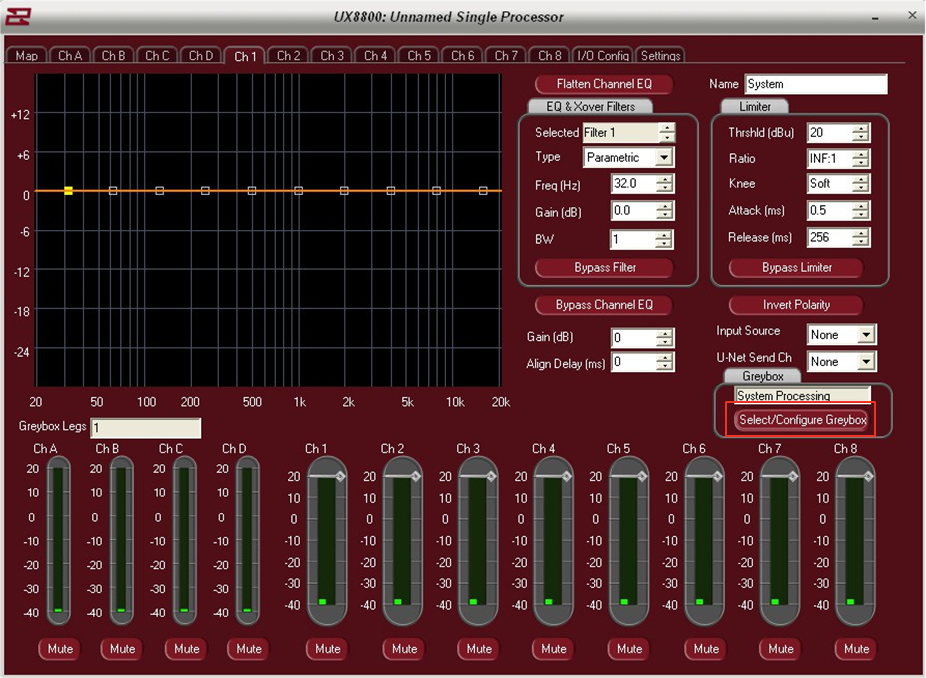**
By default, the Pilot software will launch a completely open processor allowing the user to enter in his own parameters.
Since we are choosing to use EAW factory presets, we must load a preset into the software and UX8800, starting with one of the processors empty output channels..
Click on the button marked: Select / Configure Greybox
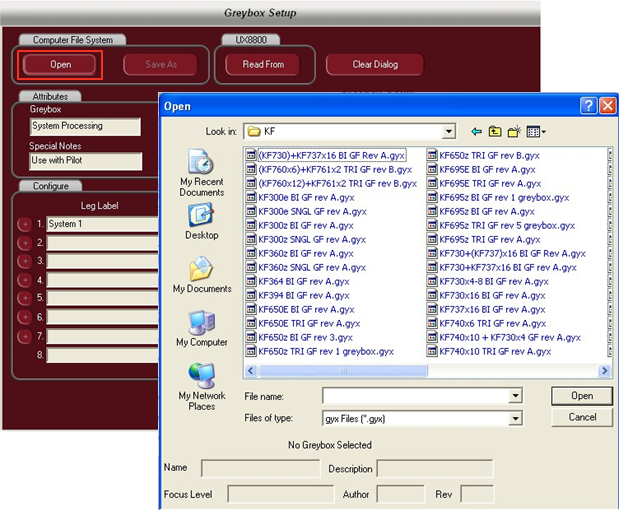
To browse for a greybox file, click on the “Open” button
This opens the greybox browser allowing the user to select from dozens of preconfigured greybox files. Select the appropriate file for your application and click “open” to open the file into EAWPilot
The selected greybox file (in this case a KF740 x 6) is loaded into the software
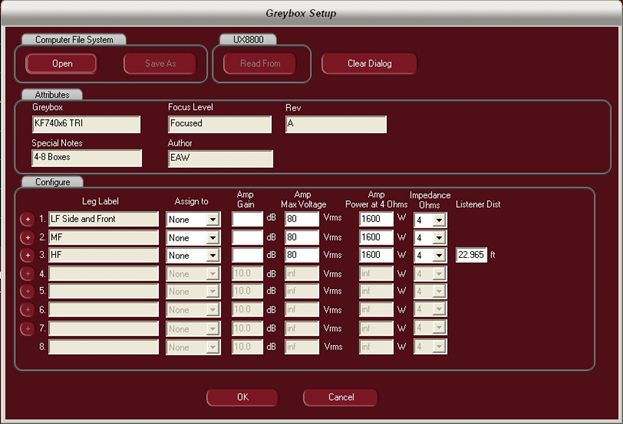
Before the greybox can be considered “optimized”, there are a few parameters to adjust. “Attributes” describes the greybox that you have selected (not adjustable)
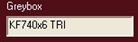
Title Of Greybox
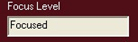
Focus Level (not all greyboxes are Focused. These are labeled as “Legacy” greyboxes)
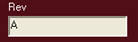
Greybox revision number
Any notes associated with the greybox

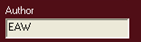
Creator of the greybox
The various legs of the greybox will be listed under “Leg Label”. The layout of these legs cannot be changed.
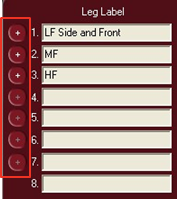
Note: Greybox legs can be duplicated to open leg channels. If the user wants to create for example, an extra HF output for the 740’s, simply click on the + button to the left of the menu and that particular leg will duplicate itself to the next available leg.
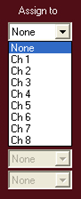
The legs must now be assigned to outputs on the UX8800. Use the dropdown menu to select from outputs 1-8 (note: as an output is used up, it will disappear from the output dropdown menu)
Note: Even though the legs for the greybox are listed, they do not necessarily have to be used. If any portion of the greybox is not required, do not give it an output assignment and the leg will remain dormant. You may now use this output on other input channels.
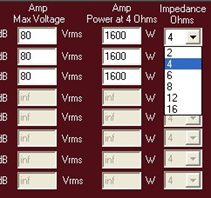
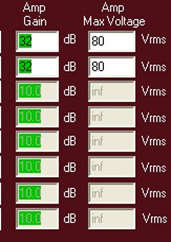
A critical step in properly configuring the greybox is entering in the appropriate information for amplifier gain and amplifier max voltage.
Amplifier gain information is needed for the UX8800 to properly align bands through crossover. Upon startup, these “Amp Gain” cells will be blank.
Amp Max Voltage is needed to properly calibrate the UX8800’s limiters. The user must enter in the load being presented to the amplifier and either the max voltage to be applied at that ohmage or the max watts available at that ohmage for that particular amplifer.
The final step in configuring the greybox is adjusting the listener distance to update the air-loss compensation feature on the UX8800.
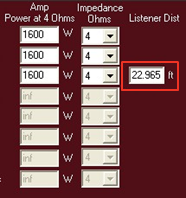
The air loss compensation is a HF tapering filter that tailors the HF response based on listener distance, temperature and humidity
Set the listener distance to the closest listener in the zone. If the listener distance is set too far back in the zone, the HF compensation may be a bit much for the people that are closer. It is more acceptable to have some dropoff of HF response
If cells are left blank, the software will warn the user with either color coded displays or with pop-up warnings that something is not correctly filled in.
If there are previously stored greyboxes on the UX8800 that you would like to access, click on the “Read From” button to access them.
The currently selected greybox can be cleared from Pilot by clicking on the “Clear Dialog” button.
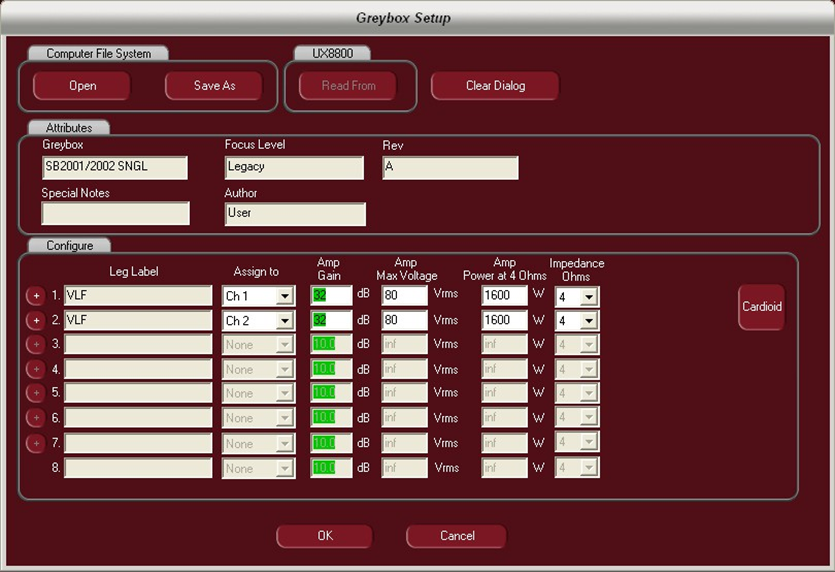
If the user wishes to take advantage of the “Cardioid” feature contained in EAW Pilot, simply load one subwoofer greybox and use the + (plus) button to add another and fill in the cells to configure the greybox. This will open the cardioid feature.
- [AC6](https://design.eaw.com/en/knowledge/ac6?hsLang=en)
- [ADAPTive](https://design.eaw.com/en/knowledge/adaptive?hsLang=en#main-content)
- [Resolution](https://design.eaw.com/en/knowledge/adaptive?hsLang=en#resolution)
- [Avalon](https://design.eaw.com/en/knowledge/avalon?hsLang=en)
- [AX Series](https://design.eaw.com/en/knowledge/ax-series?hsLang=en)
- [BH Products](https://design.eaw.com/en/knowledge/bh-products?hsLang=en)
- [ceiling speakers](https://design.eaw.com/en/knowledge/ceiling-speakers?hsLang=en)
- [Cinema Series](https://design.eaw.com/en/knowledge/cinema-series?hsLang=en)
- [DANTE](https://design.eaw.com/en/knowledge/dante?hsLang=en)
- [DSA](https://design.eaw.com/en/knowledge/dsa?hsLang=en)
- [DX Products](https://design.eaw.com/en/knowledge/dx-products?hsLang=en)
- [ease](https://design.eaw.com/en/knowledge/ease?hsLang=en)
- [General Support](https://design.eaw.com/en/knowledge/general-support?hsLang=en)
- [JF Series](https://design.eaw.com/en/knowledge/jf-series?hsLang=en)
- [JFL Series](https://design.eaw.com/en/knowledge/jfl-series?hsLang=en)
- [JFX Series](https://design.eaw.com/en/knowledge/jfx-series?hsLang=en)
- [KF Series](https://design.eaw.com/en/knowledge/kf-series?hsLang=en)
- [KF210](https://design.eaw.com/en/knowledge/kf210?hsLang=en)
- [LA Series](https://design.eaw.com/en/knowledge/la-series?hsLang=en)
- [LS Series](https://design.eaw.com/en/knowledge/ls-series?hsLang=en)
- [MK Series](https://design.eaw.com/en/knowledge/mk-series?hsLang=en)
- [MKC Series](https://design.eaw.com/en/knowledge/mkc-series?hsLang=en)
- [MKD Series](https://design.eaw.com/en/knowledge/mkd-series?hsLang=en)
- [Mosaic](https://design.eaw.com/en/knowledge/mosaic?hsLang=en)
- [MX Processors](https://design.eaw.com/en/knowledge/mx-processors?hsLang=en)
- [NT Products](https://design.eaw.com/en/knowledge/nt-products?hsLang=en)
- [NTX Series](https://design.eaw.com/en/knowledge/ntx-series?hsLang=en)
- [processing](https://design.eaw.com/en/knowledge/processing?hsLang=en)
- [QX Series](https://design.eaw.com/en/knowledge/qx-series?hsLang=en)
- [Radius](https://design.eaw.com/en/knowledge/radius?hsLang=en#main-content)
- [mosaic](https://design.eaw.com/en/knowledge/radius?hsLang=en#mosaic)
- [Resolution](https://design.eaw.com/en/knowledge/radius?hsLang=en#resolution)
- [Redline](https://design.eaw.com/en/knowledge/redline?hsLang=en)
- [Resolution 2](https://design.eaw.com/en/knowledge/resolution-2?hsLang=en#main-content)
- [UXA](https://design.eaw.com/en/knowledge/resolution-2?hsLang=en#uxa)
- [RS](https://design.eaw.com/en/knowledge/rs?hsLang=en#main-content)
- [RS LA](https://design.eaw.com/en/knowledge/rs?hsLang=en#rs-la)
- [SB Series](https://design.eaw.com/en/knowledge/sb-series?hsLang=en)
- [Service](https://design.eaw.com/en/knowledge/service?hsLang=en)
- [SM](https://design.eaw.com/en/knowledge/sm?hsLang=en)
- [U-NET](https://design.eaw.com/en/knowledge/u-net?hsLang=en)
- [ub series](https://design.eaw.com/en/knowledge/ub-series?hsLang=en)
- [UX Processors & Amplifiers](https://design.eaw.com/en/knowledge/ux-processors-amplifiers?hsLang=en#main-content)
- [EAWPilot](https://design.eaw.com/en/knowledge/ux-processors-amplifiers?hsLang=en#eawpilot)
- [UXA // UX](https://design.eaw.com/en/knowledge/uxa-ux?hsLang=en)
- [VFRi](https://design.eaw.com/en/knowledge/vfri?hsLang=en)
- [Newport Series](https://design.eaw.com/en/knowledge/newport-series?hsLang=en#main-content)
- [OAA](https://design.eaw.com/en/knowledge/newport-series?hsLang=en#oaa)
- [Online array assistant](https://design.eaw.com/en/knowledge/online-array-assistant?hsLang=en)
- [Default HubSpot Blog](https://blog.eaw.com/)
[](https://design.eaw.com/knowledge?hsLang=en)
Eastern Acoustic Works Knowledge Base
Copyright © 2026, Eastern Acoustic Works